Uploading a blog in WordPress can seem tricky for beginners, but with UploadBlog.com, the process becomes simple and fast. If you are wondering how to upload blog in WordPress by UploadBlog.com, this guide will help you step by step. From creating an account to publishing your post, we will cover everything in easy English so that even beginners can follow along and start sharing their content online without any hassle.
Why Choose UploadBlog.com for WordPress Blogging
Using UploadBlog.com to upload blogs to WordPress has many advantages:
- Ease of Use: Even beginners can upload blogs without technical knowledge.
- Time Saving: You can upload multiple blogs quickly with a few clicks.
- SEO Friendly: It allows you to add keywords, meta descriptions, and tags easily.
- Professional Appearance: Your blog looks clean and well-structured.
- Secure Platform: Your data is safe, and the tool is reliable for long-term use.
Many bloggers struggle with formatting, image placement, or SEO while posting directly on WordPress. UploadBlog.com solves these problems, ensuring that your content is ready to reach a wider audience without any mistakes.
Prerequisites Before Uploading Your Blog
Before you start uploading your blog using UploadBlog.com, you should prepare a few things:
1. Accounts and Tools
- A WordPress account.
- Register on UploadBlog.com.
- Have access to your website dashboard.
2. Content Preparation
- Prepare your blog text in simple English.
- Use headings and subheadings for better readability.
- Gather images and media to include in your post.
3. Basic SEO Preparation
- Choose a primary keyword for your blog.
- Write a short meta description.
- Prepare tags and categories to organize your blog.
Proper preparation saves time and ensures your blog is professional and ready for publishing.
Create an Account on UploadBlog.com
The first step is to create an account on UploadBlog.com. Follow these steps:
- Visit the UploadBlog.com website.
- Click on the “Sign Up” button.
- Enter your name, email address, and create a strong password.
- Verify your email through the confirmation link sent to your inbox.
- Log in to your account and explore the dashboard.
The dashboard is where you will manage all your blogs, check uploaded posts, and monitor performance.
Connect UploadBlog.com with Your WordPress Site
To upload blogs, you need to connect UploadBlog.com with your WordPress site. This step ensures that the tool can post directly to your website:
- Generate an API key from your WordPress dashboard.
- Install the UploadBlog.com plugin (if required) on WordPress.
- Enter the API key into UploadBlog.com.
- Test the connection to confirm it works correctly.
Once connected, UploadBlog.com can post blogs directly without logging in to WordPress every time.
Preparing Your Blog Content
Before uploading, your blog content should be ready. Follow these tips:
- Write Clear and Simple Text: Use easy English that anyone can understand.
- Use Headings and Subheadings: Organize your blog into sections for readability.
- Add Media: Include images, videos, or infographics to make your post engaging.
- Optimize for SEO: Use keywords naturally in the text, add meta description, and include internal links.
- Check for Errors: Proofread your content to avoid spelling or grammar mistakes.
A well prepared blog ensures readers stay longer and search engines rank your post higher.
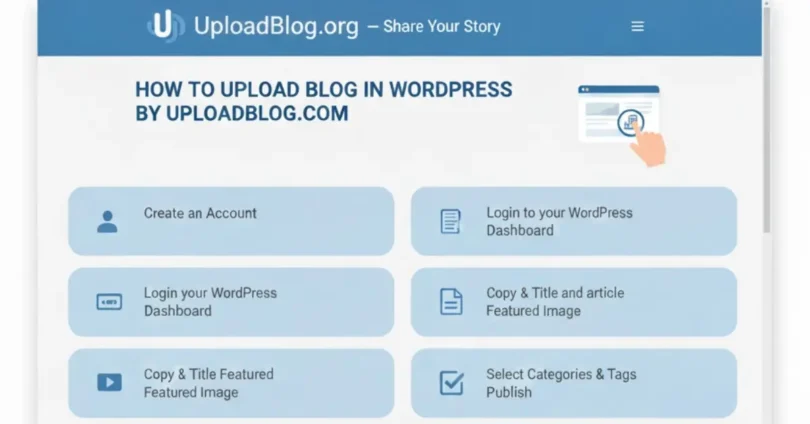
Uploading Your Blog Using UploadBlog.com
Uploading your blog is easy with UploadBlog.com. Here’s a detailed guide:
- Log in to UploadBlog.com.
- Click on “Upload Blog.”
- Enter your blog title.
- Paste or write your blog content in the editor.
- Add images and media using the “Add Media” button.
- Select categories and tags to organize your blog.
- Set your blog status: Publish immediately or schedule for later.
- Click “Upload” to submit your blog.
Your blog will now appear on WordPress exactly as formatted in UploadBlog.com.
Editing and Previewing Your Blog
After uploading, always check how your blog appears on WordPress:
- Use the “Preview” option to see the blog as your readers will.
- Check images, formatting, and headings.
- Ensure the blog is readable on both desktop and mobile.
- Make final edits if necessary.
Previewing avoids mistakes and ensures your blog looks professional before going live.
Publishing Your Blog on WordPress
Publishing is the final step:
- Click the “Publish” button in UploadBlog.com or WordPress.
- Confirm that your blog is live on your website.
- Share your blog link on social media to reach more readers.
Once published, your blog is accessible to everyone online and starts generating traffic.
Post Publishing Tips
After publishing, follow these tips to improve your blog’s reach:
- Promote Your Blog: Share links on social media and email newsletters.
- Monitor Performance: Use Google Analytics to track views, clicks, and engagement.
- Update Regularly: Keep your content fresh by updating old posts.
- Use Links: Add internal links to your older posts and external links to authoritative sources.
These steps help your blog reach a wider audience and rank higher on search engines.
Common Mistakes to Avoid
To make your blogging experience successful, avoid these mistakes:
- Uploading unformatted or messy content.
- Ignoring SEO optimization.
- Not previewing before publishing.
- Forgetting to add images or media.
- Using complex language that is hard to read.
- Not checking mobile responsiveness.
Avoiding these mistakes ensures your blog is professional and reader friendly.
Common FAQs About How to Upload Blog In WordPress By UploadBlog.com
Some faqs of how to upload blog in wordpress by uploadblog.com:
Can beginners use UploadBlog.com to upload blogs?
Yes, it is very beginner friendly and easy to use.
Is UploadBlog.com free?
There is a free plan with basic features and paid plans for advanced options.
How can I fix errors while uploading my blog?
Check your content, connection, and plugin settings, then try again.
Can I schedule multiple posts at once?
Yes, UploadBlog.com allows scheduling posts for future dates.
How do I add images to my blog?
Use the “Add Media” button in the UploadBlog.com editor.
Is my WordPress account safe with UploadBlog.com?
Yes, it uses secure connections and API keys.
Can I edit my blog after publishing?
Yes, you can edit directly in WordPress or through UploadBlog.com.
How to optimize my blog for SEO?
Use keywords in the title, headings, and meta description.
Can I upload videos with my blog?
Yes, UploadBlog.com allows adding videos and other media.
Will UploadBlog.com work with any WordPress theme?
Yes, it is compatible with all standard WordPress themes.
Conclusion
Uploading a blog in WordPress using UploadBlog.com is simple and efficient. By following this step by step guide, you can create, format, and publish professional blogs without technical knowledge. Remember to prepare your content, optimize for SEO, preview before publishing, and promote your blog after it goes live.
Regular blogging using UploadBlog.com can help you grow your audience, improve website traffic, and establish your online presence. Start today and make blogging easy and enjoyable with UploadBlog.com.